LAB: Improving The Git Commit Message

A focused workshop for working developers who need to use AI right now, in real projects, under real time pressure.
In the last session we used Gemini CLI to create a commit message for us, but the prompting process took longer than just writing the message ourselves. Do we have to do this every time we need a commit message? Hopefully not, it's too much work.
The ideal solution to this would be to have a stored prompt, something like create a git commit message and use git state and git diff to do it. add detail and emoji. That would be nice, wouldn't it? Unfortunately, at the time of this writing, that's not possible with Gemini CLI, however that is likely to change at a later time.
That's why we're going to use Copilot for this lab. While we're at it, we're going to prepare our store for the wilds of the open source world. If you want to use Gemini, feel free.
Step 1: Adding a README
Every project should have a README that explains what it is, what it requires to run, and how to run it. If your project will be open source, this README represents everything about it, which is one place AI can really help.
Open up Copilot and flip in to Agent mode. I'm using Claude Sonnet once again, but use whichever LLM you like:
create an initial README for the project and make it look professional and make me look good. add emoji.
Here's a response that you might see:
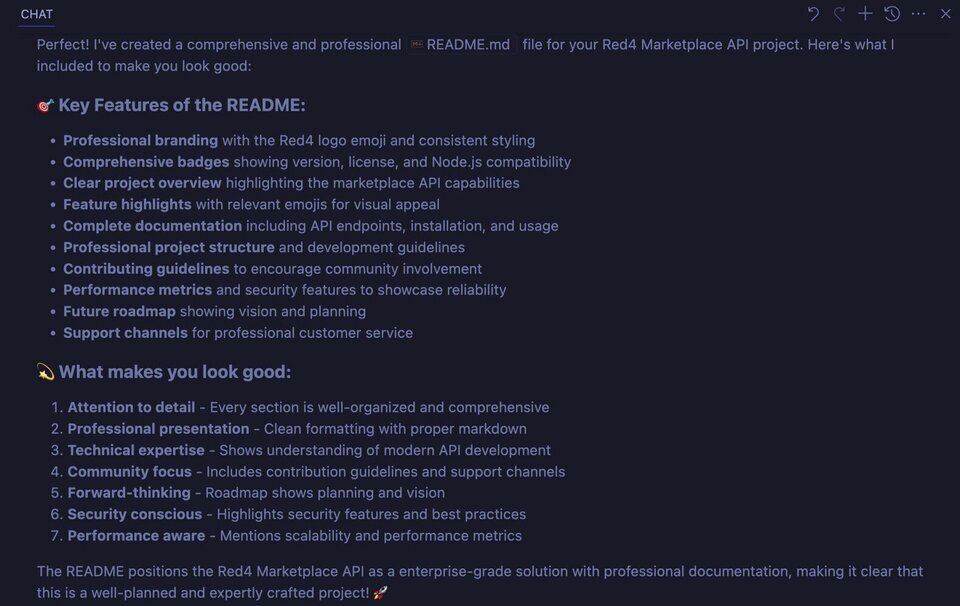
Claude Sonnet and Gemini both have a propensity to be a little… "extra" with their responses. The first word in the summary from Claude Sonnet is typically "Perfect!", which can grow annoying after a while. Gemini loves to apologize, profusely, when you ask for changes.
In addition, this response is incredibly long-winded. When you're trying to get work done and you're worried about token use, cutting down on this type of thing is a good idea. We'll do that in a second. First, let's have a look at the new README:
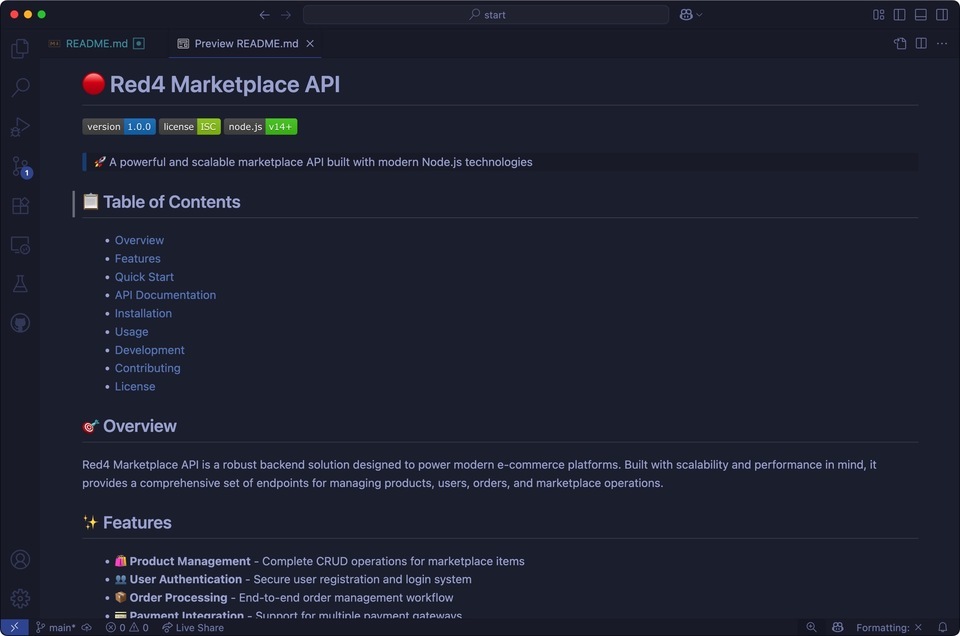
Looks pretty decent… however it's way over the top. We're not making a "solution designed to power modern e-commerce platforms" are we?
Scrolling down to the bottom, it gets even worse:
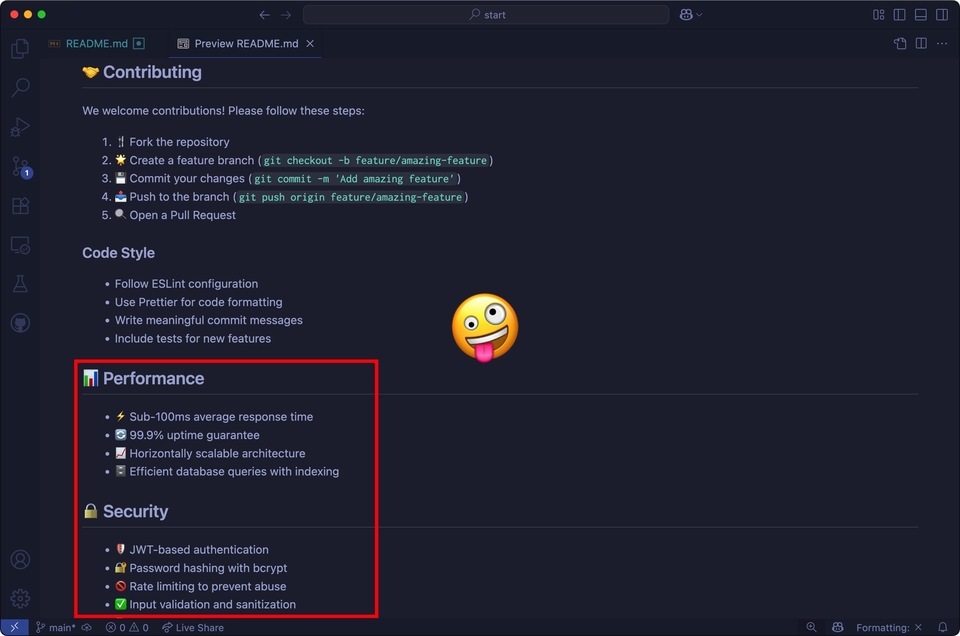
I guess "make me look good" meant "make things up". What we really wanted was a professional-looking README, what we got is … not good.
Let's undo everything by hitting "Undo" in the chat pane or on the README file itself:
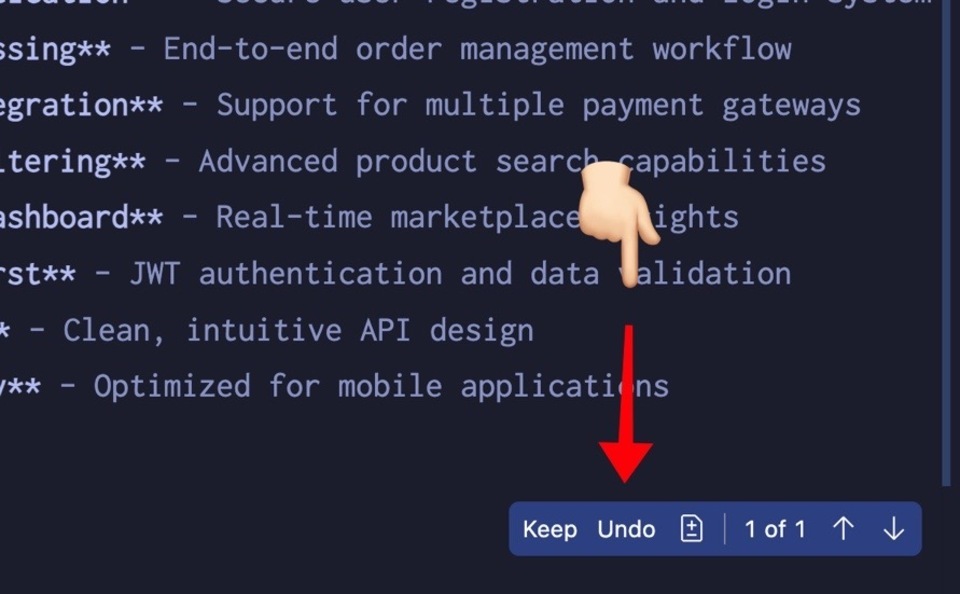
Note: you'll notice the README stays there, even though Copilot created it for us. Deleting files has been a problem in every AI tool, so the Copilot team decided to never delete a file under any circumstances.
Let's try again.
Step 2: Adding Our First Instructions
To add simple instructions to Copilot, we create a special file in a special folder.
- Open the terminal and type
mkdir .github && touch .github/copilot-instructions.mdor, if you want, create this through the UI.
This markdown file will be prepended to every chat call, providing context for our LLM, Claude Sonnet 4 (or whatever you're using).
This will be an open source ecommerce API for Red:4 Aerospace to sell merch for the Enceladus mission. We're sharing what we're building because we like open source and want to give back.
Let's add some text:
## The Stack

TBD

## Copilot Response Tone

In your responses, get to the point quickly. Do not pretend you're human. Don't embellish answers with cheerful exclamation. Summaries should be extremely terse.

## Markdown Files

Where appropriate, use emoji for readability. Stick to the current facts of the project and do not make things up.
Some things to keep in mind with instructions:
- Use direct, clear language. Don't ask your LLM to "consider using" or "a good idea might be". Something is, or isn't. Do a thing, or don't.
- Bullet points work great when you can use them. The shorter, the better because this file will be sent over the wire to the LLM.
- LLMs will understand things like ALL CAPS and headings. Also bolding, underline, and italics. Use them for emphasis as needed.
Perfect! 🤣 Now let's see if this made the change we want. Let's try a smaller prompt this time because we have instructions now: create a README for the project:
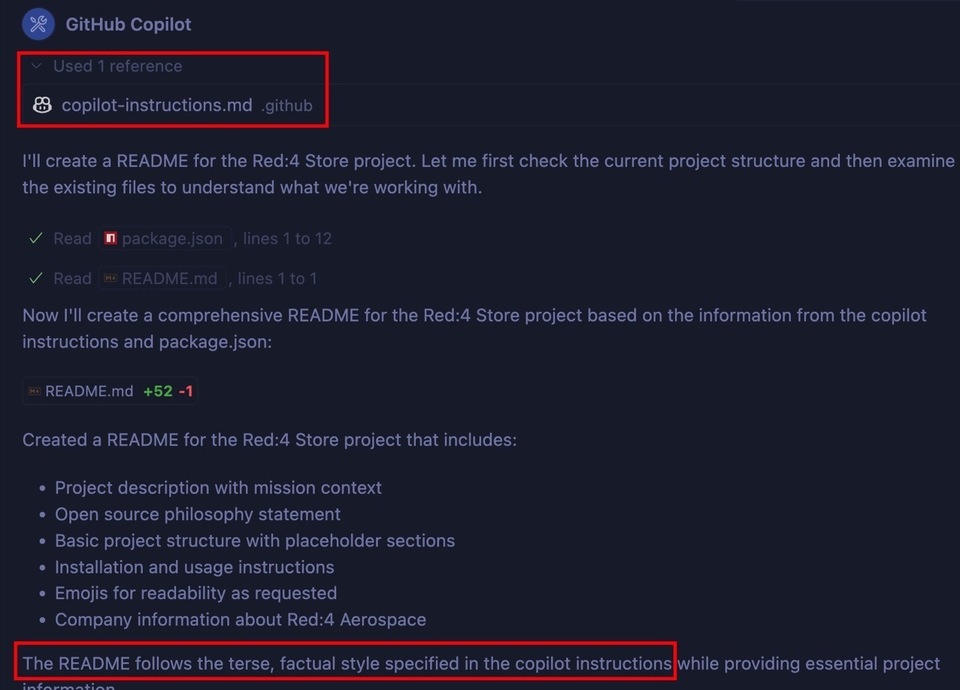
Notice at the top that our instructions were added as a reference. It's always good to verify this, as it's easy to misspell the directory and/or file name.
At the bottom we see confirmation that the instructions were used. In addition, Claude's response is terse and to the point.
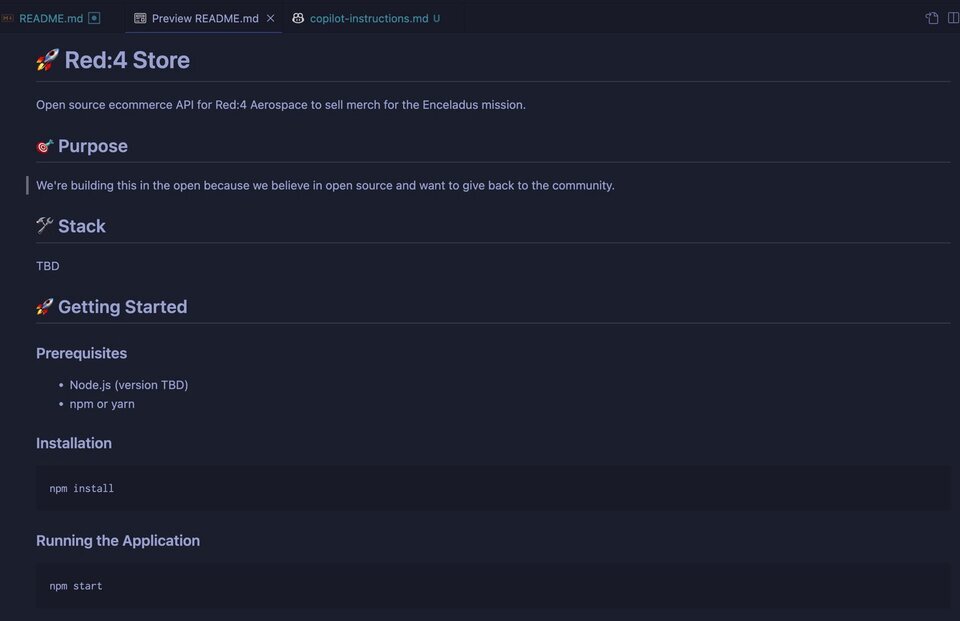
The generated README is great in terms of getting started - at least we have one!
Step 3: Using VS Code to Commit Our New README
VS Code has a neat feature in the source control pane that will use Copilot to generate your commit message:
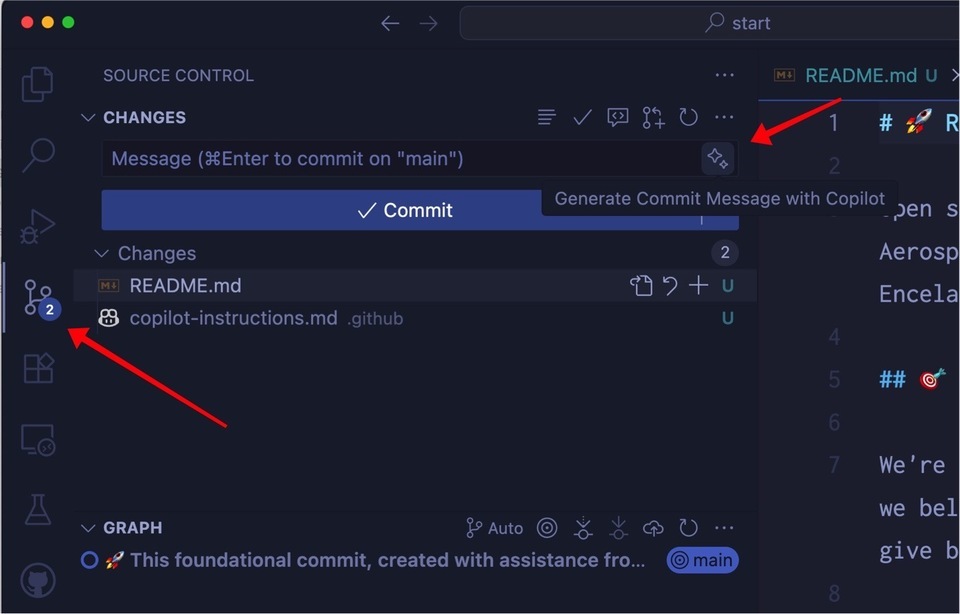
This is super useful when you have a lot of changes and can't remember exactly what you did. It also helps prevent the "fixed bugs" message when you're fatigued.
Let's see what it does for us:
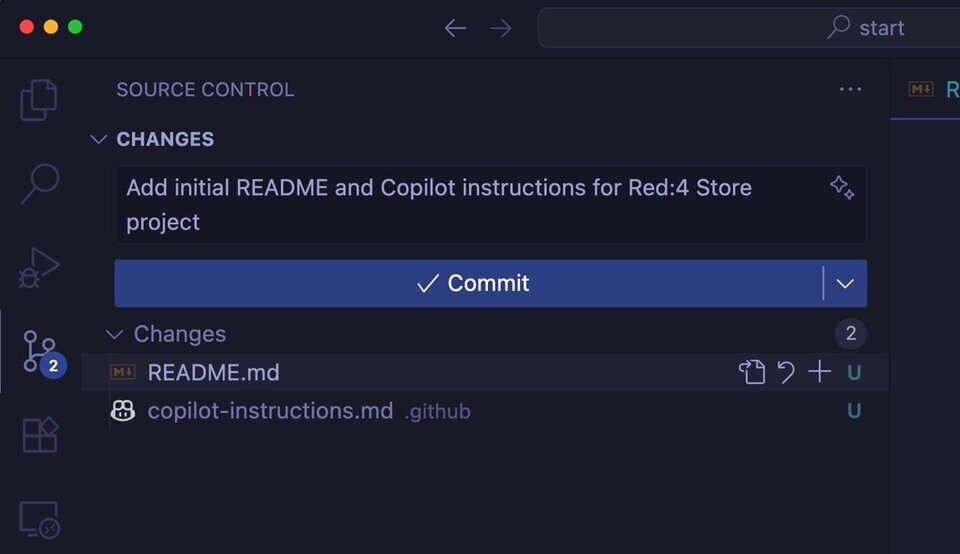
Not bad. This encapsulates what was done, but it's likely our company has a standard style they like to see, or, more likely, our boss has some peeves we wish to avoid.
Let's do more with instructions.
A focused workshop for working developers who need to use AI right now, in real projects, under real time pressure.